
Assign Members to Chatroom
Navigation
- Ribbn Support Hub:
https://help.ribbn.ai/?hsLang=en - Getting started:
https://help.ribbn.ai/getting-started?hsLang=en - Step 6: Chat & Email Notifications:
https://help.ribbn.ai/getting-started?hsLang=en#step-6-chat-email-notifications
Overview
Chat is the easiest way to stay in touch with your sellers. Each seller has their own thread so all messages stay organized and easy to find (no digging through emails).
You can:
- Assign a team member to handle chats
- Get notified when new messages arrive (desktop or mobile)
- Create templates for quick replies
Chat Settings
Purpose
Set who gets notified about incoming chat messages from customers and sellers.
Assign a Member to Chatroom (Add Chat Member)
Where to go
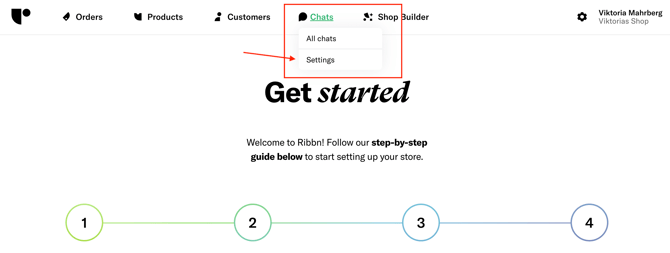
Navigate to:
Chat > Settings > Member Management
What to do
- In the dropdown list, choose the default person to receive chat alerts.
- Select either:
- Yourself, or
- A shared customer support email / support owner (recommended for teams)
The selected default member is the primary recipient for incoming chat notifications, helping ensure new messages don’t get missed.
Screenshot (reference)
Optional: Not handling chats yourself?
If you don’t want to handle chats personally, assign someone else—such as a Support team member using an email your support team can access.
Avoid assigning notifications to an email inbox that isn’t actively monitored, or chats may go unanswered.
Add a New User (If Needed)
If the person you want to assign isn’t in the list yet, create them first.
Steps
- Click the Settings icon (top right).
- Scroll to Users & Permissions > Create New User.
- Assign the Customer Support role to the new user.
- Return to Chat > Settings > Member Management and assign that user (or yourself) to receive chat notifications.
Quick reference table
| Task | Location | Outcome |
|---|---|---|
| Create a support user | Settings (top right) > Users & Permissions > Create New User | Adds a new user to your workspace |
| Assign chat notification owner | Chat > Settings > Member Management | Routes incoming chat alerts to the selected member |
Feedback
Was this article helpful? Yes / No