
Set Up Email Notifications
Navigation
Overview
Email notifications keep your customers and sellers updated with important events and messages, including:
- Order confirmations
- Refunds
- Shipping updates
- Store receipts
- General messages (for example, alerts about new chat messages or actions to take in the app)
All notification emails are managed in one place to keep your messaging consistent and easy to track.
Where to configure email notifications
- Click the Settings icon (top right).
- Go to Customer Notifications.
- Select Notification Settings.
This area controls:
- The sender/reply-to addresses shown to customers
- Your email header and footer branding
- Visual styles (colors, fonts, buttons, etc.)
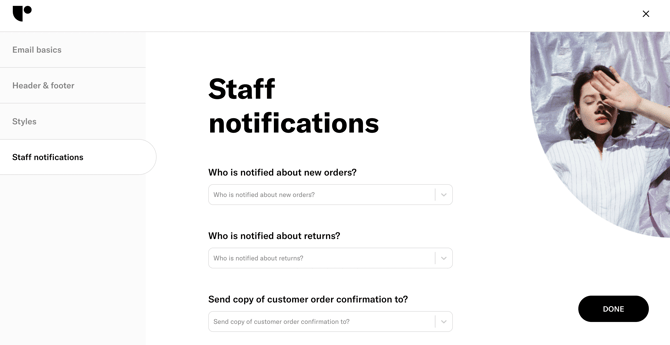
- Staff notifications (who on your team gets alerted)
Email basics (addresses shown to customers)
Set which email addresses appear in customer notifications.
| Setting | What it controls | Typical use |
|---|---|---|
| Contact Email | The address customers can reply to for support | Support inbox (e.g., help@yourstore.com) |
| Sender Email | The “From” address customers see in their inbox | Branded sender (e.g., orders@yourstore.com) |
Header & footer
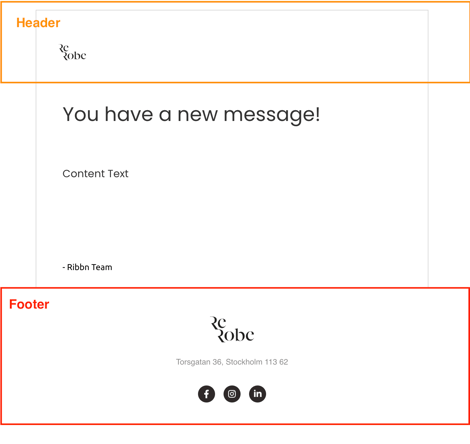
Use the header and footer settings to add branding and required store details.
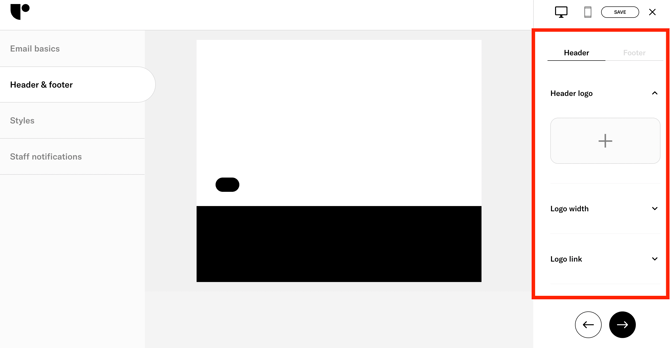
Header options
You can:
- Upload your logo
- Set the logo width
- Add a link (for example, to your website)
- Adjust alignment for both the logo and the title
Footer options
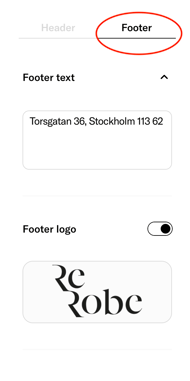
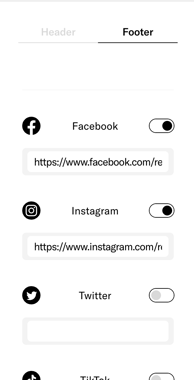
You can:
- Enter your store’s address in the Footer Text field
- Add links to your social media profiles (social icons appear automatically)
- Use the alignment toggle to adjust the layout
Styles (visual customization)
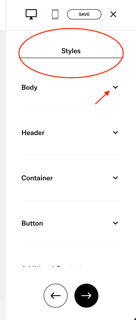
Customize the look and feel of your notification emails using the style controls and live preview.
What you can customize
- Open the dropdown sections under Body, Header, Container, Button, and more
- Adjust background color, borders, and fonts
- Watch updates appear in the live preview on the left as you edit
Recommended workflow
- Start with Header (logo, title, alignment).
- Configure Body and Container (backgrounds, padding, fonts).
- Style Buttons (ensure the color has strong contrast for readability).
- Review the live preview for spacing, legibility, and branding consistency.
Staff notifications (who on your team gets alerted)
Choose which team members receive staff alerts for:
- New orders
- Returns
- (Optional) A copy of each customer notification
Tip: Add yourself first so you can test the full design flow. Once you’re happy with how things look, you can remove yourself or reassign as needed.
Testing checklist
Use this checklist to validate your setup before you rely on notifications in production:
- Sender Email and Contact Email are correct (and monitored)
- Logo displays cleanly and is properly sized
- Footer includes your store address
- Social links are correct and icons appear as expected
- Styles are readable (font size, spacing, contrast)
- Staff notifications reach the right teammates
- (Optional) You receive a copy of customer notifications during testing
Feedback
At the end of the article, you’ll see: “Was this article helpful?” with Yes / No options.