
Store Credit (Add/Remove)
Overview
Store credit lets you add (or deduct) a monetary balance on a customer, seller, or staff member profile. Credits are linked to the user’s email address and will apply automatically at checkout—both online and in-store/POS.
Use store credit to:
- Reward customers or sellers
- Reimburse for returns, shipping issues, or service hiccups
- Resolve disputes or goodwill gestures
- Recognize staff performance
What is Store Credit?
Store credit is a stored balance a user can apply to purchases:
- Applies online and in-store
- Automatically reduces the order total by the available credit amount
- Linked to the user’s email address
Example
If a user has $20 in store credit and makes a $75 purchase, they’ll only be charged $55.
Add Store Credit (Customer or Seller)
Step-by-step
- In your dashboard, go to Customers → All Customers.
- Use the search bar to find the user by name or email.
- Open their profile, then click Add Credit (bottom-right corner).

- Enter the credit details:
- Amount of store credit
- Reason for issuing the credit
- Personal note (included in the notification email)
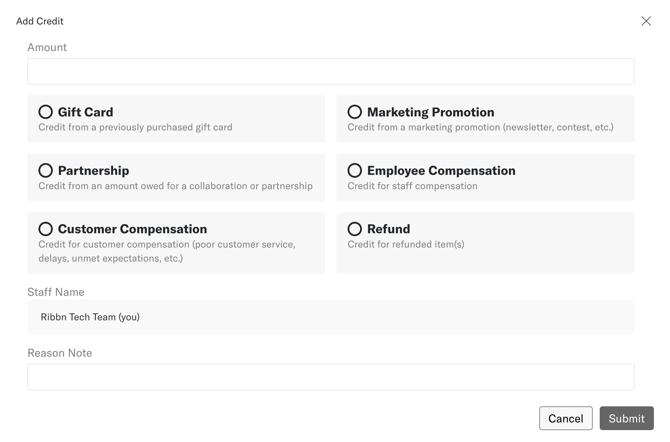
- Save/confirm to apply the credit.
Automatic email notification
After credit is added, the user receives an email notification showing the credit update and your note.
Remove or Deduct Store Credit
If credit was added by mistake (or needs adjustment), you can deduct credit from the same place.
Step-by-step
- Open the user’s profile.
- Click Add Credit.
- In the amount field, enter a negative value to deduct.
-20
Example: If a customer has 100 SEK in credit and you enter -20, their balance becomes 80 SEK.
- Add a reason and note as usual.
- The user will be notified by email of the updated balance.
How Customers Use Store Credit
Online store
- Customers enter their email at checkout.
- Any available store credit is applied automatically.
In-store / POS
- When checking someone out in the app/POS, ensure they’re linked to the correct user profile using the correct email address.
- The available credit will apply through their profile.
Quick Reference
| Task | Where | Key Action |
|---|---|---|
| Add credit | Customers → All Customers → User Profile | Click Add Credit, enter a positive amount |
| Deduct credit | Customers → All Customers → User Profile | Click Add Credit, enter a negative amount (e.g., -20) |
| Notify user | Automatically | Email sent after add/deduct (includes your note) |
Troubleshooting
Credit didn’t apply at checkout
Check the following:
- The purchase is using the same email tied to the user profile.
- For POS, the order is linked to the correct user profile (not a guest/incorrect email).
Need to correct an incorrect credit amount
- Use Add Credit and apply a negative value to reverse or reduce the balance.